THE FIELD NOTES / GROK
Grok Image-to-Video Prompts: 3 Templates and Common Fixes
Copy portrait, product and landscape motion prompts for Grok image-to-video. Choose a starting image and diagnose face drift, unwanted motion and crop problems.
The short answer
Upload the intended starting image in an image-to-video mode, then describe one visible action, the camera movement and the ending. Choose one of the three templates below. Treat them as starting briefs to evaluate, not tested output guarantees.
Read the reference before writing the prompt
Existing WINDOWLIGHT style-library images, not verified outputs from the model discussed here. These are visual planning examples, not before-and-after tests.
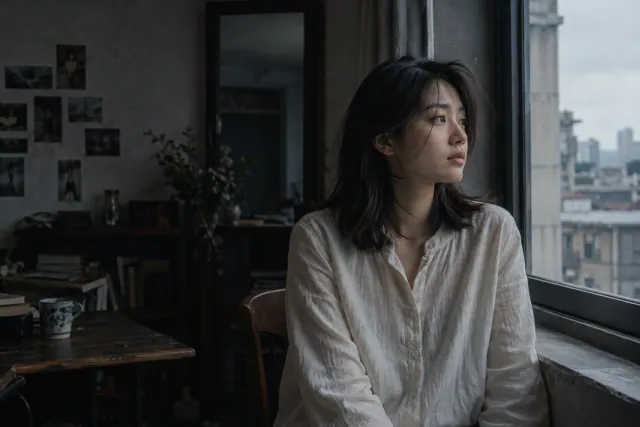
Choose one template
Attach your approved image in the starting-image field. Match the output crop to it where the interface allows. Record the model, duration and resolution shown in that interface; no universal setting or supported duration is implied here. Submit only one template per test.
Portrait glance
For a clear seated or shoulder-up portrait; keep the movement small.
Animate the attached portrait as one continuous shot. The person makes a small glance toward the visible window, with minimal head movement, then holds the expression. Fixed camera. Preserve the visible hairstyle, clothing and room. Keep the existing light direction. No standing up or scene change.
Review: Compare the face and hairline at the start, during the glance and at the end.
Stationary product
For your own approved product photograph with the entire item visible.
Animate the attached product photograph. The product stays upright and stationary while the camera makes a gentle push forward. Preserve the visible silhouette, label placement and material. Keep the lighting consistent and finish on a steady view. No hands or scene change.
Review: Reject the clip if a label, strap or important silhouette changes during playback.
Landscape breeze
For a landscape with visible leaves and stable background landmarks.
Animate the attached landscape. A gentle breeze moves the foreground leaves. Tree trunks and distant buildings remain still. Fixed camera, unchanged time of day and composition. One continuous view without a cut or zoom.
Review: Use a trunk or building edge as a fixed landmark while checking the moving leaves.
If the result misses the brief
| Problem | Next experiment | What to inspect |
|---|---|---|
| Result ignores the photo | Check the submitted task input and starting-image mode before rewriting the prompt. | The task history must show the intended source. |
| Face changes while turning | Reduce the head turn while keeping the same source and camera instruction. | Check the exact moment of the turn, not just the opening frame. |
| The whole view bends | Keep the camera fixed and request motion in one named area. | Straight background edges should stay stable. |
Keep the source and other settings stable when testing one revision. These are suggested experiments, not measured fixes or success-rate claims.
1. Confirm the image is actually attached
Typing “use my photo” is not the same as attaching a source image. Before submitting, confirm that the selected image appears in the input preview and that the interface is in an image-based video mode. If it offers both a starting-frame input and a reference-image input, check which one you selected.
The linked xAI documentation distinguishes animating a starting image from guiding a scene with references. This article describes a workflow, not a promise that every Grok app or third-party studio exposes the same controls. Record the service and model shown in your interface so later comparisons use the same setup.
2. Choose a still that can support the movement
For a portrait, start with a face that is already clear and a pose you want to keep. A tight headshot gives no evidence of shoes, hands or the room behind the camera. Asking that portrait to become a full-body walking shot introduces several new decisions at once.
For a product, approve the silhouette and label before animation. For foliage or water, check that the important background structures are visible. Leave room in the direction of movement. Crop the still for the intended placement first, then check how your selected tool handles that crop.
3. Use a four-part motion brief
Write the subject action first, the camera instruction second, the details to preserve third, and the ending last. For example: a small glance toward a window; fixed camera; unchanged glasses and jacket; a quiet hold at the end. Each phrase gives you something specific to check in the result.
Avoid pairing “fixed camera” with “orbit around the person.” Avoid “keep the frame identical” when you also want to reveal the back of an object. Choose the essential movement and remove the instruction that contradicts it. These are editorial ways to simplify a test, not special commands that override model behavior.
4. Portrait template: a glance without a large head turn
Use the Portrait glance template above for an approved shoulder-up portrait with the face visible. Its goal is a small expression change suitable for an introductory shot. Keep hands outside the action so you can judge the face separately.
Inspect the eyes, glasses and hairline before, during and after the glance. If the face changes around a turn, the next experiment can reduce that turn while keeping the same source image. If the source already has obscured eyes or an ambiguous face, improve that source before trying to solve everything with text.
5. Product template: one move around a stationary subject
Use the Stationary product template above for a product that is already shown accurately. A gentle push toward a stationary item gives a clearer review task than a full spin with hands, floating particles and a changing background. The purpose is to inspect the material and silhouette.
Check the label throughout playback, not only in the thumbnail. If lettering changes, asking for “perfect text” does not establish that the next result will preserve it. Consider a simpler shot or an approved graphic layer during editing. A shot is unsuitable if it changes a product detail that a buyer relies on.
6. Landscape template: move the environment, hold the view
Use the Landscape breeze template above for a scene where leaves or water can move without changing the main composition. Choose which area should move and which structures should remain still. This makes an unexpected camera move easier to spot.
If the scene seems frozen, specify a visible action such as leaves moving gently in one part of the frame. If the whole view warps, reduce the number of moving elements. Compare the same tree trunk, shoreline or building edge across the clip rather than relying on an overall impression.
7. Compare one revision against the original
Save the source, prompt, model, duration and output together. Write down the earliest moment where a requirement fails. “Glasses change when the face turns” tells you more than “bad quality.” Change one action or camera instruction, and keep the other inputs stable where the tool allows it.
Use the same crop and playback size for both clips. A different crop can conceal a defect without fixing it. Keep usable drafts, and stop spending when the remaining problem needs a new reference or an editing step. A second attempt is an experiment, not a promised repair.
An editable starting brief
This is an original planning exercise, not a tested output guarantee. Adapt it to your subject and the controls available in your selected interface.
SHOT WORKSHEET — keep with your selected template.
Source filename and crop:
Selected service, model, mode, duration and resolution:
One visible action:
One camera instruction:
Details that must remain unchanged:
Intended ending:
First mismatch and timestamp in the result:
One change for the next attempt:
Before you approve the result
- The intended source image is visible in the input preview.
- Only one template is submitted, with details matching the source.
- The full clip preserves the identity or product details that matter.
- The camera follows one clear instruction.
- The source, settings, prompt and result are saved for comparison.
Why does the video look unrelated to my uploaded image?
First check whether that image was attached to the submitted task and whether you selected a starting-frame or reference mode. Then look for text that asks for a different scene. If the original task is still processing or its inputs are unclear, inspect its history before paying for another attempt. A mismatch alone does not prove a service outage.
Official capability references
Editorial reviewed October 28, 2026. Feature availability varies by model, version and interface. These references do not imply affiliation with the model providers.